Portfolio Edit window
Portfolio Edit window facilitates the editing of new/existing portfolios. It may look like this:
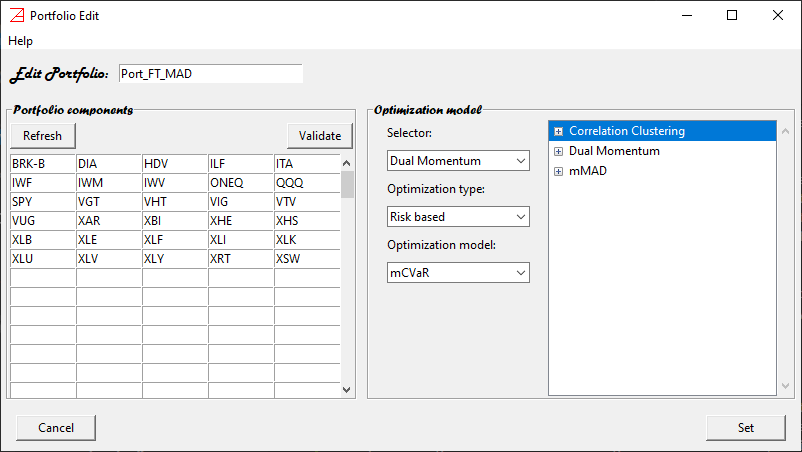
There are 3 main features that describe a portfolio:
portfolio name
portfolio components
optimization model
Portfolio name
It can be entered at the top. The default value (for a new portfolio) is MyPort. Feel free to change it
to something meaningful to you. Note that the portfolio name must be unique during an azapyGUI session.
Portfolio components
The exchange symbols can be entered on the left panel. It must be one symbol per cell. Pressing Enter will move the focus to the next cell. The symbols can be entered in any cell, not necessarily in order, using lower or upper characters. Leading and ending spaces will be ignored.
Validate button
The symbols can be validated as real exchange symbols by pressing the Validate button.
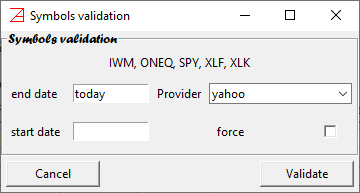
Doing so, the Symbol Validation window will popup. It may look this:
Pressing the Validate button will direct
azapyGUI to request some data from the market data provider. A symbol will be considered
valid if the provider fulfils the request. Otherwise, a warning window will popup asking if
you want to keep this name in the symbols list. At this point you can discard the symbol (perhaps it is
a misspell) or you may keep it and change the market data provider in the Symbol Validation window
(if you had registered several market data providers on the Market Data Settings).
Note that a portfolio cannot be saved (or made available for further computations) if any of the symbols
are not valid. Also, the symbol list must hold at list one valid symbol.
Symbol Validation window
A few remarks about the Symbol Validation window, see the fig above.
At the top are listed the symbol names subject to validation.
In most cases the default values can be accepted as is. Here are their meanings.
end date- time series end date. The default istoday. It stands for the latest exchange business day.start date- time series start data. The default is empty; it stands for start date = end date. Alternatively, a valid date smaller or equal to the start date can be entered. For example start date = 1/1/2012 will trigger a request for time series starting on the first exchange business day after, and including, the start date. Note that the collected market data will be stored by azapyGUI for further computations.Provider- market date provider name (registered with azapuGUI onMarket Data Settings).force- if the box is checked the request is sent directly to the provider, otherwise the data will be read from theMarket Data Directorylocation if it is available, and then from the provider if is not.
Upon completion, the valid symbols will be listed in the Active Market Data panel of the main application window.
Optimization model
These are the analytical algorithms for portfolio weights evaluations. Some may be very simple; the simplest model is Equal Weighted Portfolio
where all weights are equal to 1/n with n the number of portfolio weights. Others may be very sophisticated, involving
selectors as well as an optimizer. For example, the model listed in the Portfolio Edit fig at the top this section, involves
2 selectors: Correlation Clustering, and Dual Momentum, as well as optimizer maximizing the Sharpe ratio for a (1,1)-mMAD
risk measure. The analytical models are discussed here.
Model choices:
Selector- the Selector model can be chosen from the first combobox.Optimization type- designates the optimizer family.Risk based- optimization based on various risk measures.Naive- simple optimization inspired by market wisdom.Greedy- maximum return optimization using other criteria than risk exposure (as in risk measures).
Optimizer model- the actual optimizer model corresponding to the value of theOptimization type.
Once a value is chosen for the Selector or Optimization model, the corresponding model parameters window will
popup. The model parameters windows will be discussed later.
After the model is selected and the parameters are chosen, the models are listed on the right table. Pressing on the + will expose the parameters value. A valid model may have several Selectors (or none) and one and only one Optimizer. Always the Optimizer will be listed last.
The order of Selectors (if there are more than one) matters. Right clicking the mouse on the Selector name will drop down a menu allowing us to move the Selector up or down the list. In the example above the model will execute successively, a correlation clustering selection (eliminating similar assets), followed by a dual momentum selection (of best assets and capital at risk allocation), and finally an mMAD-Sharpe weights optimization on the selected components.