Main application window
A normal azapyGUI session starts and ends at this level. The role of main application window is to keep track of active portfolios and market data, and to lunch main analytical (e.g., backtesting, portfolio rebalancing, market data analysis) as well as basic maintaining procedures (e.g., edit, save, load portfolios and market data, etc.).
It may look like this:
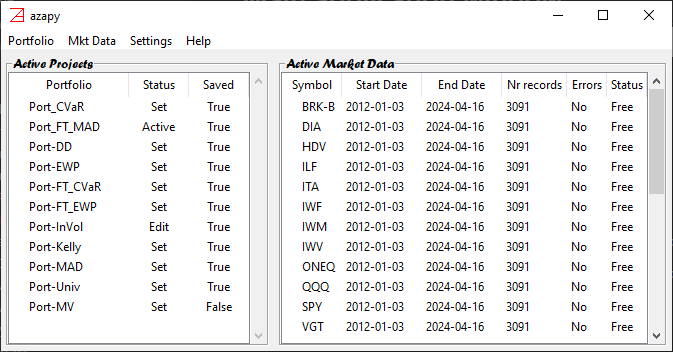
It has 3 distinct elements:
MenuActive Portfoliosboard (left) - keep track of the portfolios present in the azapyGUI memory.Active Market Databoard (right) - keep track of the market data loaded by the application.
Active Portfolio board
It is empty when the application is launched. Any newly edited, loaded, and cloned portfolio will be listed here. During a session, the portfolio names must be unique. You cannot create (edit, load, or clone) a portfolio with the same name as an existing active portfolio.
An active portfolio has 2 attributes:
Status- indicates the portfolio status. It can take 3 values:Set- portfolio is ready to be engaged in computations and any other procedures.Active- portfolio is already engaged in computations. Alteration functions (e.g., edit and remove) cannot be performed.Edit- portfolio is under editing procedure. It cannot be involved in any other procedure until it is released. Cloning of the original version of the portfolio, before editing, is still permitted.
Save- indicates if the portfolio is saved:True- the present state of the portfolio is already saved,False- portfolio is not saved.
Fast load - right clicking the mouse on the column name Portfolio will produce the same effect as selecting Menu/Portfolio/Load, but with less clicks.
Floating Menu - right click the mouse on a portfolio name. The portfolio is selected, and a floating menu is dropped down. It has similar
items to the main Menu: Edit, Backtest, Rebalance, Clone, Rename, Save, and Remove.
Multiple Selections - Shift + right click and Ctrl + right click the mouse produces multiple selections. Backtest,
Save and Remove act on multiple selections while Rebalance, Edit, Close, and Rename will act only on the top selection.
Overall, the Floating Menu is faster, in terms of number of clicks, than the main Menu. However, the
most useful feature is the ability to launch a multi-portfolio backtest procedure.
Active Market Data board
It is empty when the application is launched. It lists the market data symbols that are in the azapuGUI memory. More symbols will be added as more markets data is required by computations or uploaded by the user.
Several descriptive fields are present:
Symbol- is the exchange symbol of the time series.Start Date- time series start date.End date- time series end date.Nr records- total number of business day in the time series.Errors- it isNoif there are no missing data in the time series. If there are missing records, then the time series is unusable. azapyGUI does not provide any fill back missing data procedures. We strongly advise using a different source of market data or avoiding using it altogether.Status- if it isFree, then the time series can be used in computations. It may not beFreeduring brief periods when the time series is updated.
Fast load - right click the mouse on the column name Symbol. It will produce the same effect as Menu/Mkt Data/Load, but with less clicks.
Floating Menu - right click the mouse for single selection or Shift + right click, and Ctrl + right click for multiple selections, and
a floating menu is dropdown. It has 4 items:
Update- update the time series in terms of start/end dates. Note that this is a manual update. The update of the time series occurs automatic as needed during computation procedures. As a manual procedure, it has a limited use, but useful for occasional standalone studies of the historical market data time series.View- will launch theStatisticswindow for selected times series. Many reports, graphs, and raw data saving mechanisms are provided there.To Excel- save all selected time series in a xlsx file. Each time series is saved in a separate tab sharing the symbol name. Note that same feature is available inStatisticswindow. Moreover, if Excel is installed on your computer and in theApplication Settings/Miscellaneous/Open Excelbox is checked, then after the file is saved an Excel session is opened containing this file.Remove- remove the selected symbols for the azapyGUI memory.